
Make
Tracira has a native Make app. Add monitoring to any scenario with a single module, no HTTP setup required.
Tracira has a native Make app. Add monitoring to any scenario with a single module, no HTTP setup required.
Prefer to start from a working scenario?
Copy one of the free Make templates into your Make account. An AI drafts replies to your email and each draft waits in Tracira for your approval before anything is sent.
Add the Send an output module to your scenario
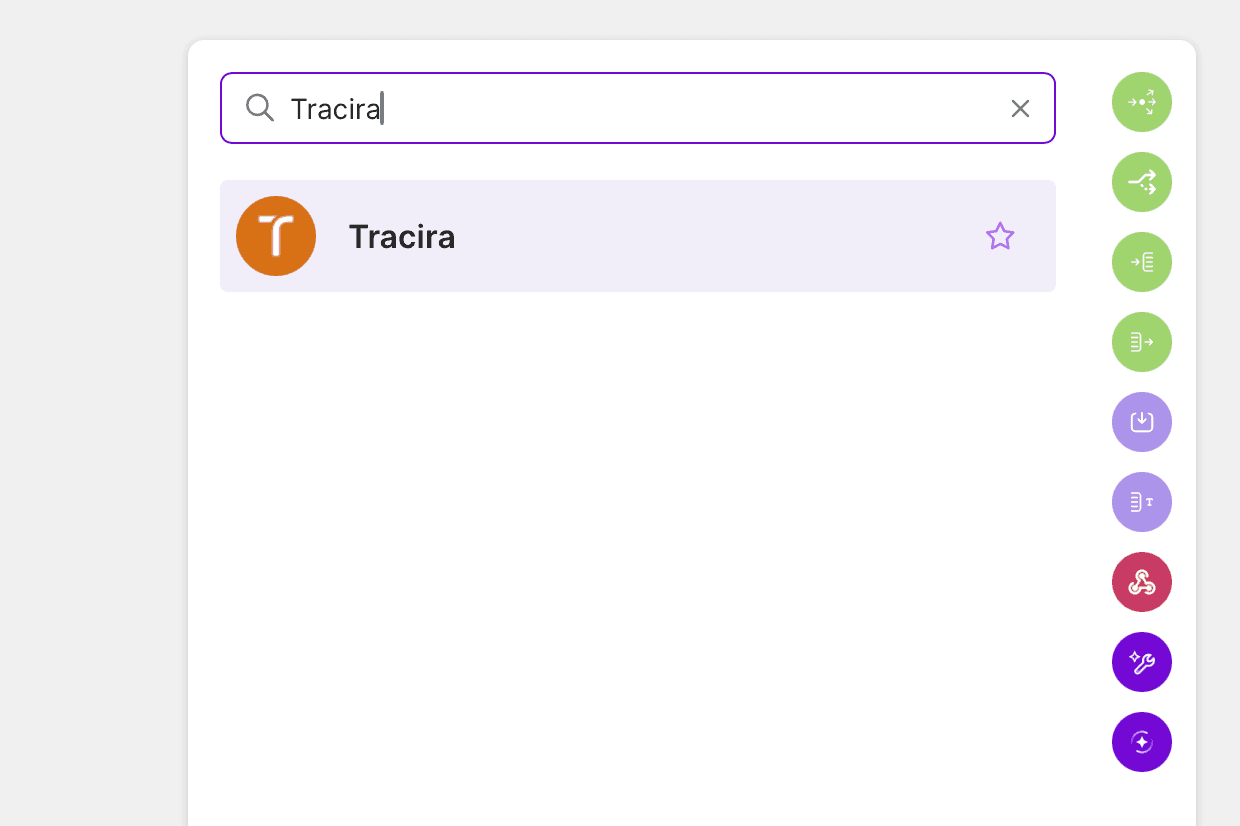
In your scenario, click + after the module that generates the AI output. Search for Tracira and select Send an output. Tracira is an official Verified Make app, available to every Make account with nothing to install.
Connect your workspace
Click Add to create a connection. Paste your API token from the Integrations page in your Tracira workspace into the API Token field.
Map the fields
At minimum, map Project Name and AI Output from the previous modules. Optional fields:
- Task Name: groups outputs inside the project
- Input Text: the message the AI replied to (e.g. the customer's email) - not your system prompt
- AI Model, and under advanced settings Latency (ms) and Cost (USD): for analytics
Choose what happens after the check
One After check field decides what the module does once Tracira has the output:
- Wait for the verdict (default) waits for the evaluation, up to 30 seconds, so the
result is available in the same run. Add a Router right after the module:
- Route 1, filter: Status equals
pass, then continue - Route 2, filter: Status equals
flaggedorerror, then alert or stop
- Route 1, filter: Status equals
- Don't wait, just log it returns instantly with Status
pendingand evaluates in the background. Use it for high-volume logging where you don't need the verdict. - Wait for a human to approve holds the output for a person before your scenario acts. See Holding an action for approval below.
Verdict response
With Wait for the verdict, the module returns:
{
  "ok": true,
  "id": "b1c2d3e4-...",
  "status": "pass",
  "verdict": "pass",
  "confidenceScore": 0.95,
  "explanation": "The reply stays within the 20% discount cap."
}
Branch on Status: pass means nothing needs a person, flagged means the output waits
on the Review page, and error means the check could not finish. Verdict (pass,
fail or unsure) and Explanation say why.
Holding an action for approval
When your AI decides to do something with side effects (issue a refund, delete a record), set After check to Wait for a human to approve. That reveals Action Name and Action Summary, both required, plus optional Action Parameters, Callback URL and Fire callback on.
The two halves do different jobs. The action describes what is being reviewed: the
summary is what reviewers read verbatim to approve or reject, so write it as a clear
sentence like Refund EUR 49.00 to Alice Martin (order #8841). The choice itself decides
whether a person is asked at all, and it holds the output on the Review page whatever
your rules conclude. Tracira never runs the action: your scenario does, once a person
approves.
Rules still run either way, and they remain the right tool when only some actions need
a person: a data-field rule on action.params.amount flags refunds over a threshold and
lets smaller ones through. When a rule flags the output, its explanation is what the
reviewer reads.
To act on the decision, start a second scenario with Watch decisions (below), or set a Callback URL pointing at a Make webhook. You can also leave AI Output empty when there is no message to review and only a step to approve.
Reacting to decisions: Watch decisions
Watch decisions is an instant trigger that starts a scenario the moment a person decides in Tracira. By default it fires on Approved by a human, Rejected by a human and Edited by a human. You can also select Taken over by a human (a reviewer handled it themselves, so nothing should wait for an approval), Taught after the fact (a reviewer coached the AI after an output already went out), Flagged for review, Passed all rules and Evaluation error. Saving the trigger registers it with Tracira automatically; there is nothing to set up in the dashboard.
The Decision it carries uses the API values: approved, rejected, changed (edited)
and handled (taken over). When a reviewer edits an output, Output already holds their
corrected version, so a scenario that maps Output delivers what the human approved.
Corrected Output and Original AI Output are there when you need to tell the two apart.
Scenario A: [ AI drafts ] → [ Tracira: Send an output ]            (submit for review)
Scenario B: [ Tracira: Watch decisions ] → [ Filter: Decision = approved ] → [ Send the reply ]
Logging a conversation
For a chatbot or support thread, send one output per exchange - do not paste the full message history into every output:
- Input Text: only the newest user message (the one your AI just replied to)
- AI Output: the reply to it
- Session ID (under Advanced settings): your conversation or thread ID - the same value on every turn
Tracira stitches all outputs sharing a Session ID into a single conversation thread, so reviewers read the whole exchange in order with nothing repeated. Your AI request can still carry the full history - Tracira only needs the new turn.
Leave your system prompt out entirely: it's configuration, not conversation. The best place for it is Tracira itself - see Hosted instructions below.
Hosted instructions (self-improving prompts)
Tracira can host the instructions (system prompt) your AI runs with, so the prompt lives next to the people reviewing its output instead of buried inside a scenario module or a spreadsheet. Reviewers see, edit, and restore every version on the AI instructions page in the dashboard; your scenario always drafts with the latest.
Fetch instructions at the start of the run
Add Tracira → Get instructions before your AI module. Use the same Project Name and Task Name as your Send an output module, and put your prompt into Starter Instructions. It is saved as version 1 on the very first run and returned; after that, whatever is stored in Tracira always wins. Map the module's Instructions output into your AI step's system message.
Tag each output with the version
In Send an output, map the Get instructions Version output into Instructions Version. Every output then shows "Instructions it followed" with a link to the exact text that produced it.
Teach it from feedback
When a reviewer sends a draft back with a comment (Watch decisions with Edited by a human selected), have an AI step rewrite the current instructions to follow that comment, then save the result with Tracira → Update instructions: map Reviewer Comment and Output ID from Watch decisions into the fields of the same name, so the AI instructions page shows why the version exists. The next run drafts with the improved instructions: the same correction is never needed twice.
[ Gmail ] → [ Tracira: Get instructions ] → [ AI drafts ] → [ Tracira: Send an output ]Attaching files
For small files, map them into Input Attachments (files the AI worked from) or Output Attachments (files the AI produced) on the Send an output module. Pick Upload file and map the binary, or From URL and paste an HTTPS link. Tracira auto-detects whether each attachment is an image, audio, or document.
Whenever an output carries more than one file, fill in What is it? on each one:
Before photo, After photo, Signed contract. The reviewer sees that above the file
instead of IMG_0042.jpg, and it comes back on the attachment in Watch decisions, so a
later step can pick out the file it needs without matching file names.
The label describes the file's role in that output, so it goes on the attachment, not on the upload:
| Moment | Where |
|---|---|
| Upload a file module | Nowhere. The file does not belong to an output yet. |
| Send an output → Input or Output Attachments | The What is it? field, next to the key, URL or binary. This is the moment, whichever source you picked. |
| Re-attaching with Already in Tracira | Carried over automatically, like the file name. Fill it in only to change it. |
| Afterwards | The Update an output module, under File Labels. |
Large files: the Upload a file module
Inline attachments travel inside the Send an output request, which is capped at 4.5 MB. For larger files (a multi-page scanned PDF, a high-res image) add the Upload a file module before Send an output. It uploads the binary straight to Tracira storage (no size cap from the request body) and returns a key, supporting files up to 32 MB.
Add the Upload a file module
After the module that produces the file, add Tracira → Upload a file. Map the binary into File and its name into File name.
Add Send an output after it
In Send an output, under Input Attachments or Output Attachments, add an item with source Tracira upload and map the Upload a file module's Attachment Key output into the key. That is the only mapping needed; the file is linked to this output automatically. This is also where you fill in What is it?: the upload step had no output to name the file against.
[ AI module ] → [ Tracira: Upload a file ] → [ Tracira: Send an output ]Why two modules
The file is uploaded directly to storage, bypassing the request-body limit, then the output
references it by key. This is the same flow any client uses through the public API
(POST /api/uploads, then POST /api/logs), just packaged as a module.
Getting a file back: the Download a file module
Every event on the Watch decisions trigger carries an Attachments array listing the files stored on that output, each with a File name, a File Key, a File URL, and the What is it? label the sender gave it.
That is what makes a redo possible for document work. A scenario that parsed a PDF has finished long before the reviewer reads it, so when they send it back with a comment the scenario no longer holds the file. Add Tracira → Download a file, map the attachment's File URL (or File Key) into File, and it comes back as binary data you can feed straight to your AI module along with the Reviewer Comment.
[ Tracira: Watch decisions ] → [ Tracira: Download a file ] → [ AI module ] → [ Tracira: Send an output ]On that final Send an output, set Revision Of to the original Output ID so the two versions form a chain, and under Input Attachments or Output Attachments add an item with source Already in Tracira, mapping the same File Key. The document stays on the new version without being uploaded again.
Each version keeps its own copy
A re-attached file is copied into the new output rather than shared with the old one. Deleting an output deletes its files, so a shared file would disappear from the revision the moment someone cleaned up the original. It does mean a document revised three times is stored four times and counts four times toward your storage quota.
Updating an output afterwards
Some details only exist after the output has been sent: the ticket number your CRM assigns a second later, the category a downstream step decides, the outcome of the call. Add Tracira → Update an output wherever that detail appears and write it onto the output.
- Metadata rows merge into what is already stored: only the keys you list change, and a row with an empty value removes that key.
- File Labels rename a file already on the output. Map its File Key and say What is it?.
- Session ID, Subject ID and Actor ID (under advanced settings) can be filled in later too.
[ Tracira: Send an output ] → [ CRM: Create ticket ] → [ Tracira: Update an output ]The output itself does not change
Updating an output never touches the AI's output, the verdict or the human decision: they are the record a person judged. (A reviewer's Edit is stored next to the original, never over it.) Changing metadata does not re-run your rules either. When the AI produces a new version, send it with Send an output and set Revision Of.
Tip
Choose Don't wait, just log it for fire-and-forget logging (Make continues instantly). Keep Wait for the verdict only when the scenario needs to branch on the result.